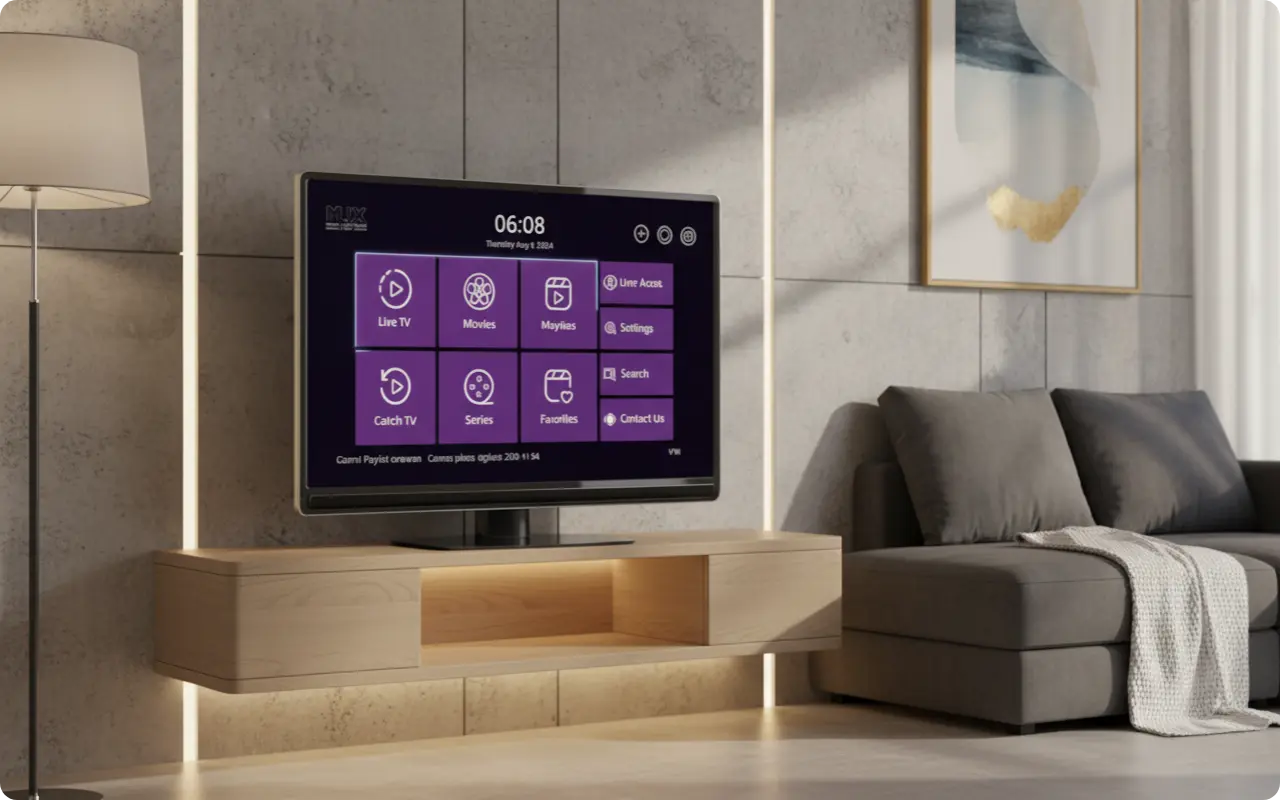
Flix Pro IPTV is available on Samsung Smart TVs through the Samsung App Store. This guide will walk you through the complete installation and setup process, from downloading the app to configuring your IPTV playlist for the best streaming experience.
How to Install Flix Pro IPTV from Samsung App Store
Installing Flix Pro IPTV on your Samsung Smart TV is straightforward and can be done directly through the Samsung App Store. Here's the complete step-by-step process:
Step 1: Access the Samsung App Store
- 1.Turn on your Samsung Smart TV and ensure it's connected to the internet
- 2.Using your Samsung TV remote, press the "Home" button
- 3.Navigate to "Apps" or "Samsung App Store" from the home screen
- 4.Click on the App Store icon to open it
Step 2: Search for Flix Pro IPTV
- 1.Use the search function (magnifying glass icon) in the Samsung App Store
- 2.Type "Flix Pro IPTV" or "Flix IPTV" in the search bar
- 3.Look for the official Flix Pro IPTV app in the search results
- 4.Verify it's the correct app by checking the developer information
Step 3: Download and Install
- 1.Select the Flix Pro IPTV app from the search results
- 2.Click "Install" or "Download" button
- 3.Wait for the installation to complete
- 4.Once installed, you can find the app in your "Apps" section
Setting Up Flix Pro IPTV on Your Samsung TV
After installation, you'll need to configure Flix Pro IPTV with your IPTV service credentials. Here's how to get started:
Step 1: Launch the App
- 1.Navigate to your Samsung TV's home screen
- 2.Go to the "Apps" section
- 3.Find and launch "Flix Pro IPTV"
- 4.Wait for the app to load completely
Step 2: Find Your MAC Address
- 1.Once the app opens, look for the settings or menu option
- 2.Navigate to "User Account" or "Device Info" section
- 3.Write down the MAC Address displayed on the screen
- 4.Keep this MAC Address handy for the next step
Configuring Your IPTV Playlist
To start streaming content, you'll need to upload your IPTV playlist to the Flix Pro IPTV service. This process connects your Samsung TV with your IPTV subscription.
Step 1: Access the Upload Portal
- 1.On a computer or mobile device, open a web browser
- 2.Navigate to the official Flix IPTV upload portal: https://www.flixproplayer.com/ar-MA/login
- 3.You'll see a form to enter your device information
Step 2: Enter Your Information
- 1.Enter the MAC Address from your Samsung TV
- 2.Paste your M3U playlist URL (provided by your IPTV service)
- 3.Double-check all information is correct
- 4.Click "Upload" or "Submit" to process your playlist
Step 3: Restart and Enjoy
- 1.Return to your Samsung TV
- 2.Close and restart the Flix Pro IPTV app
- 3.Your playlist should now be loaded and ready to stream
- 4.Browse through your channels and start watching!
Troubleshooting Common Issues
App Not Found in Samsung App Store
- •Try searching for "Flix IPTV" instead of "Flix Pro IPTV"
- •Check if your Samsung TV model is compatible with Tizen OS
- •Update your Samsung TV firmware to the latest version
Playlist Not Loading
- •Verify your M3U playlist URL is correct and accessible
- •Check your internet connection on the Samsung TV
- •Wait a few minutes for the playlist to sync
Frequently Asked Questions
Q: Is Flix Pro Player available on Samsung Smart TV?
A: Yes! Flix Pro IPTV is available on Samsung Smart TVs through the Samsung App Store. You can download it directly from the Tizen OS app store.
Q: How do I find Flix Pro IPTV on my Samsung TV?
A: Open the Samsung App Store on your TV, search for 'Flix Pro IPTV' or 'Flix IPTV', and install the app. It should appear in the search results.
Q: What do I need to set up Flix Pro IPTV on Samsung TV?
A: You need a Samsung Smart TV with Tizen OS, an IPTV subscription with M3U playlist URL, and internet connection. The app will guide you through the setup process.
Q: Is Flix Pro IPTV free on Samsung TV?
A: Flix Pro IPTV offers a 7-day free trial. After the trial period, a one-time activation fee is required for full access to all features.
Q: Can I use my existing IPTV subscription with Flix Pro IPTV?
A: Yes, Flix Pro IPTV works with any IPTV service that provides M3U playlist URLs. You can use your existing subscription credentials.
Conclusion: Enjoy Flix Pro IPTV on Samsung TV
Flix Pro IPTV is an excellent choice for Samsung Smart TV users. With its easy installation process through the Samsung App Store and straightforward setup, you can quickly start enjoying your IPTV content on your Samsung TV.
The app offers a 7-day free trial, allowing you to test all features before committing to the one-time activation fee. Once set up, you'll have access to all your IPTV channels and content directly on your Samsung Smart TV.
Remember that Flix Pro IPTV is a player application - you'll still need an active IPTV subscription to provide the content. The app simply organizes and streams your existing IPTV service on your Samsung TV.
Ready to Start Streaming on Your Samsung TV?
Now that you know how to install Flix Pro IPTV on your Samsung TV, you're ready to enjoy the best IPTV experience. Get started with our premium IPTV service and start streaming today.