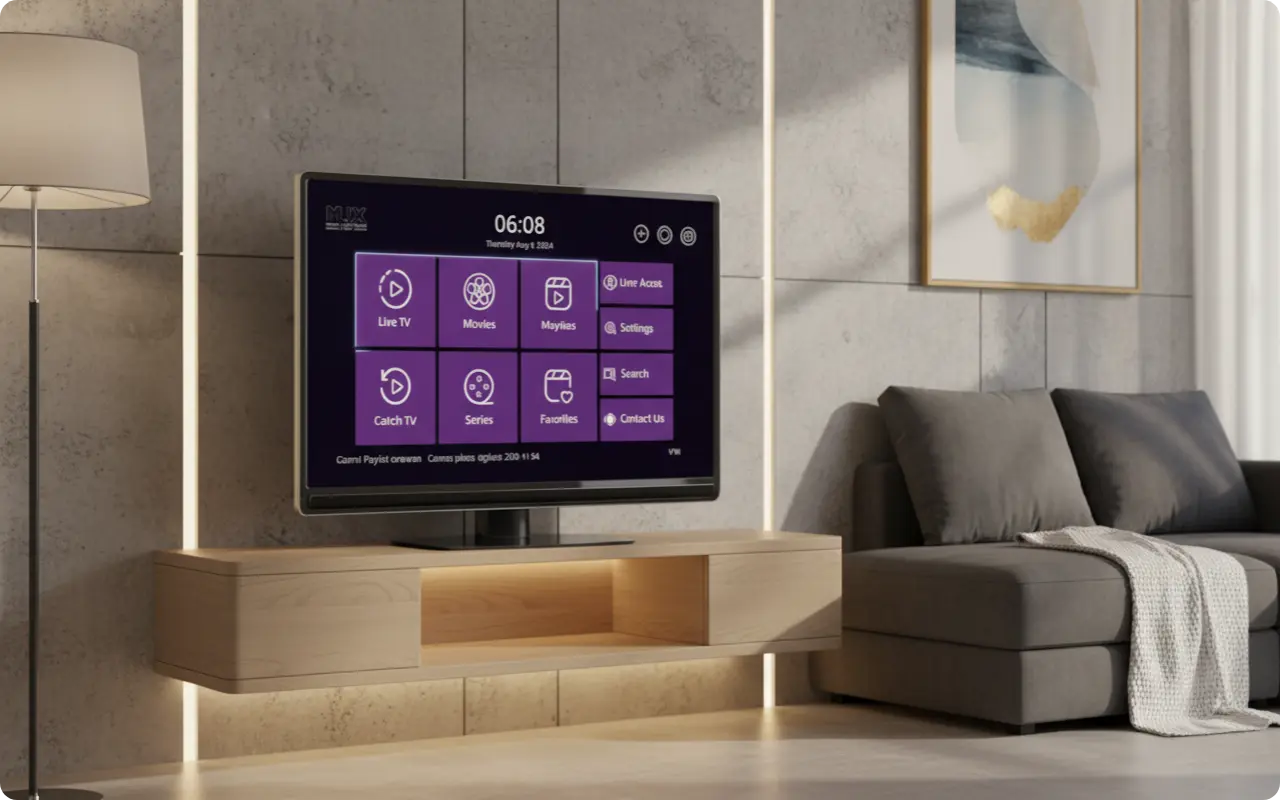
Yes, you can easily install the official Flix Pro Player directly on your Roku TV or Roku streaming device. Because it's an officially supported app, the process is simple and doesn't require any complicated workarounds. This guide will walk you through the entire process, from installation to setup, in just a few easy steps.
Flix Pro Player: An Official Roku App
Flix Pro Player is available directly from the Roku Channel Store, making it a safe and verified application for your device. This means you can install it with confidence, knowing it's an official, legitimate app that has been approved by Roku.
✅ What is Flix Pro Player?
Flix Pro Player is an "advanced Xtream player," meaning it's a tool to play content from your own IPTV provider, and does not contain channels itself. You'll need your own IPTV subscription to provide the content - the app simply organizes and streams it on your Roku device.
- •Official Roku Channel Store app
- •Safe and verified by Roku
- •Advanced Xtream player for IPTV content
- •Requires your own IPTV subscription
How to Install and Set Up Flix Pro Player on Roku
Follow this clear, numbered list that is easy for any user to follow. The entire process takes just a few minutes and requires no technical expertise.
Step 1: Go to the Roku Channel Store
- 1.Turn on your Roku TV or device
- 2.From the home screen, navigate to "Streaming Channels" or "Channel Store"
- 3.You can also access it directly via: Roku Channel Store Link
Step 2: Search for the App
- 1.Select "Search Channels" from the Channel Store
- 2.Use the on-screen keyboard to type in "Flix Pro Player"
- 3.Look for the official Flix Pro Player app in the search results
Step 3: Add the Channel
- 1.Select the Flix Pro Player app from the search results
- 2.On the app's information page, click "Add channel"
- 3.The app will now be added to your home screen
- 4.You'll see a confirmation message when it's successfully added
Step 4: Launch the App
- 1.Return to your Roku home screen
- 2.Find the Flix Pro Player channel (it should appear in your channel list)
- 3.Open it by selecting the channel
Step 5: Add Your IPTV Playlist
- 1.The app will prompt you to add your playlist
- 2.You will need your Xtream Codes API credentials or an M3U playlist URL from your IPTV service provider
- 3.You can upload your playlist either directly within the app or by visiting their website: https://flixproplayer.com/
- 4.Follow the on-screen instructions to complete the setup
Step 6: Activate the App
- 1.Flix Pro Player offers a free trial period
- 2.To continue using it, you will need to complete the one-time in-app purchase for lifetime activation
- 3.This is a one-time payment, not a recurring subscription
- 4.Follow the app's prompts to complete the activation process
Important Tips for a Smooth Experience
🌐 Stable Connection
Ensure your Roku device has a strong and stable internet connection for the best streaming performance. A wired Ethernet connection is recommended for optimal results.
- •Use Ethernet cable if possible for best stability
- •Ensure strong WiFi signal if using wireless connection
- •Test your internet speed to ensure adequate bandwidth
📋 Have Your Credentials Ready
Before you start, make sure you have your IPTV playlist URL or Xtream Codes login information from your provider handy.
- •M3U playlist URL from your IPTV provider
- •Xtream Codes API credentials (username, password, server URL)
- •Contact your IPTV provider if you need help finding these details
Conclusion: IPTV Made Simple on Roku
Installing Flix Pro Player on a Roku device is incredibly straightforward because it's an official app. It's an excellent choice for Roku users who want a simple, clean, and reliable player for their IPTV service.
The entire process takes just a few minutes and requires no technical expertise. Since it's available directly from the Roku Channel Store, you can install it with confidence, knowing it's a legitimate, safe application.
Remember that Flix Pro Player is a media player that requires an IPTV subscription to provide content. The app itself is free to download, but you'll need your own IPTV service provider to supply the channels and content you want to watch.
Ready to Start Streaming on Your Roku?
Now that you know how to install Flix Pro Player on your Roku device, take the next step to unlock a world of entertainment. Download the app, explore our premium IPTV service plans, or start a free trial today!